

How do I set up a Thermometer Display in my Campaign?
Thermometers are often included on auction leaderboards as a visual way to track progress towards a fundraising target.
Thermometers are also used on Donation or Pledge leaderboards to track the funds raised exclusively via donation items in the campaign.
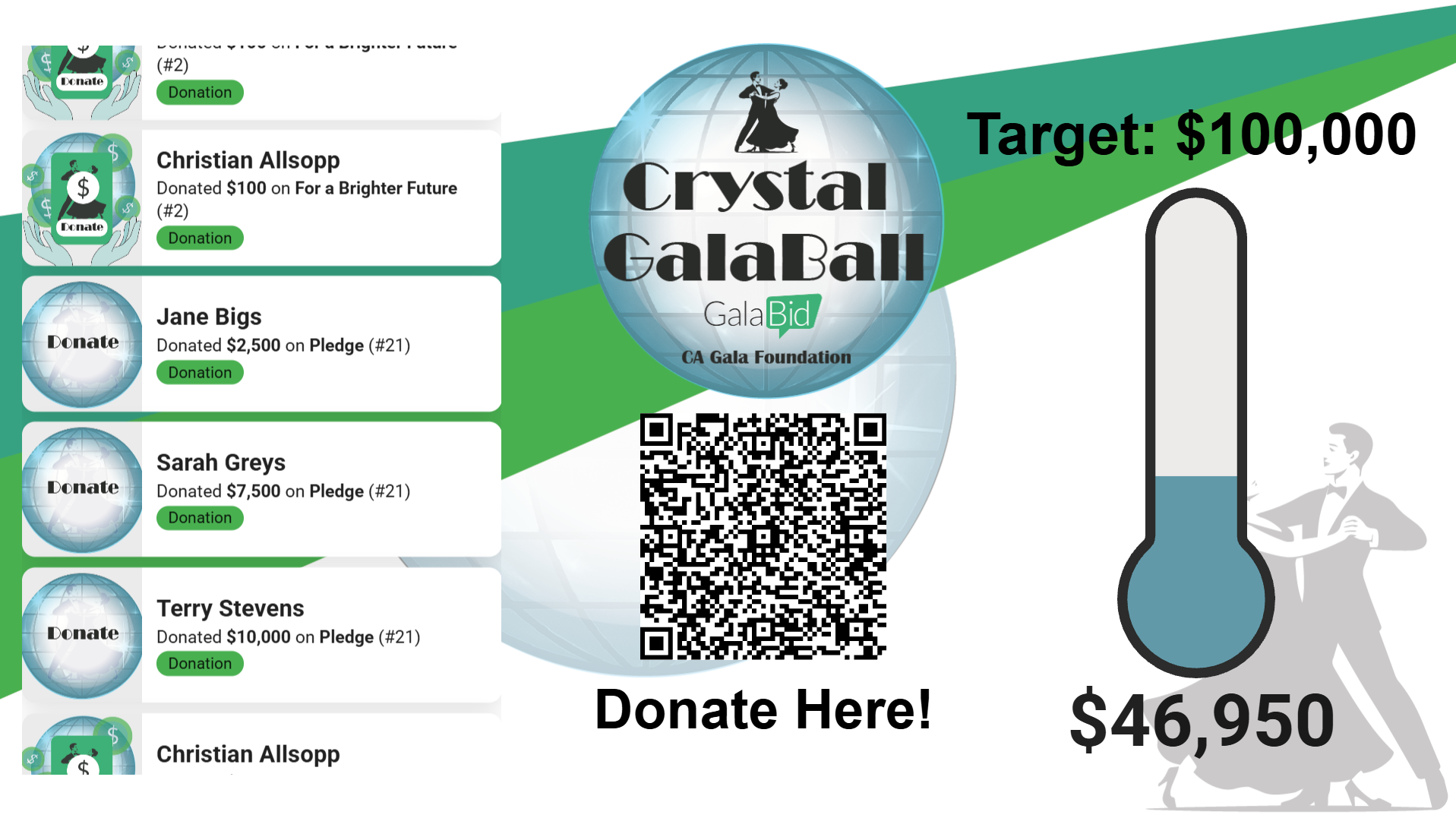
To set up a Thermometer Display and track progress towards a target, follow the steps below.
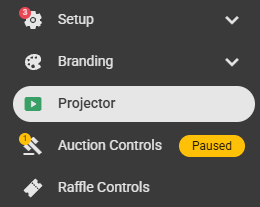
Step 1) Go to your Projector tab and click 'Add Projector' in the bottom right corner.
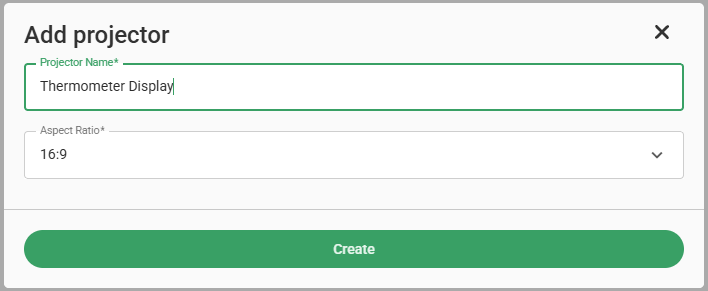
Step 2) Name your projector and select the Aspect Ratio. Most screens use the standard 16:9 ratio that we have set as the default. Click 'Create' to finalise.
Step 3) Once you click 'Create', the projector edit page will automatically open to a blank canvas.
On the left you will find the elements list, which contains useful widgets such as: item table, count down timer and total raised. Add the elements you'd like to use, and arrange them in your display.
On the right you will find your launch and preview tools. This includes background customisation, font selection for text and additional zoom, copy, paste and trash tools at the bottom.
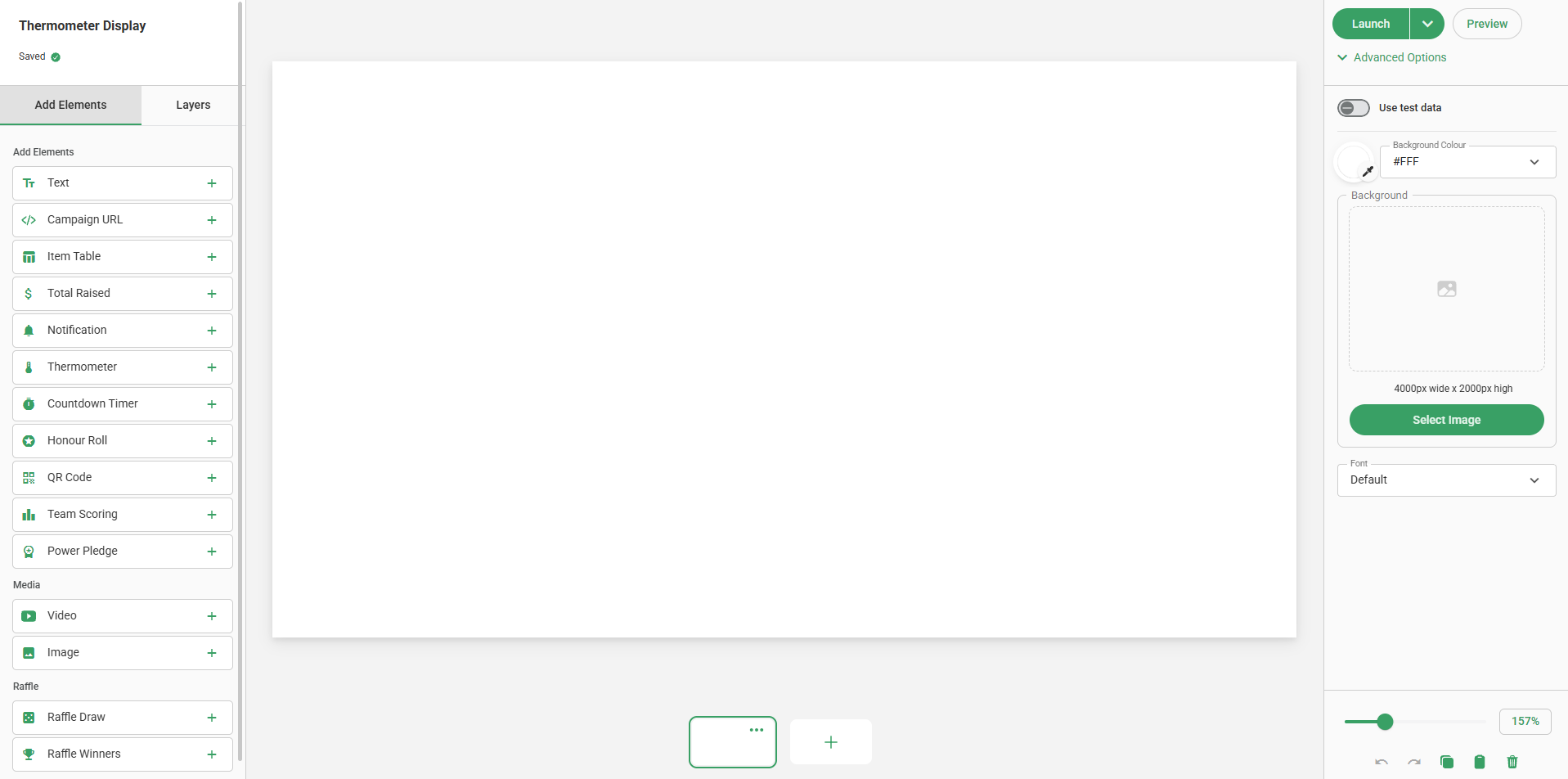
For the Thermometer Display setup, we are going to use the elements: 'Honour Roll' + 'Thermometer' + 'Total Raised' + ''QR Code' + 'Text' and then from the Media section 'Image'.
Step 4) First select 'Honour Roll'. This will then add the element to your display.
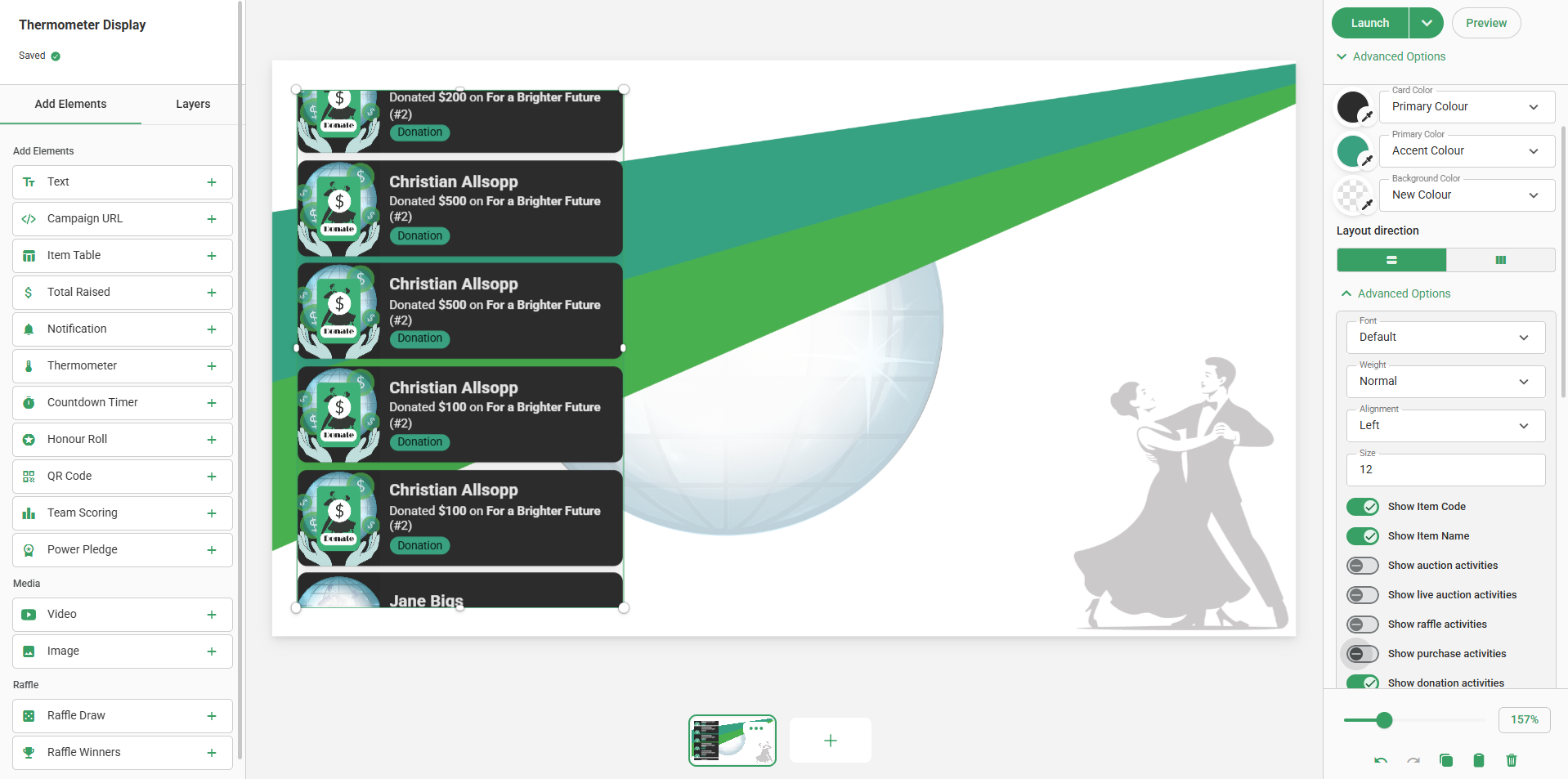
You will find on the right hand side of the screen that when the element is selected, tools specific to this element will appear such as layout direction and branding. Under Advanced Options, you will find further customisation abilities such as filtering the items and the mechanics of the table.
You can adjust placement of elements on the projector by simply clicking and dragging them around the page and you can adjust the size by clicking and dragging the white circles situated on the corners and the sides.
Note: Elements can be deleted by selecting them and clicking 'Backspace' on your keyboard or by selecting the trash icon at the bottom of the tool bar on the right.
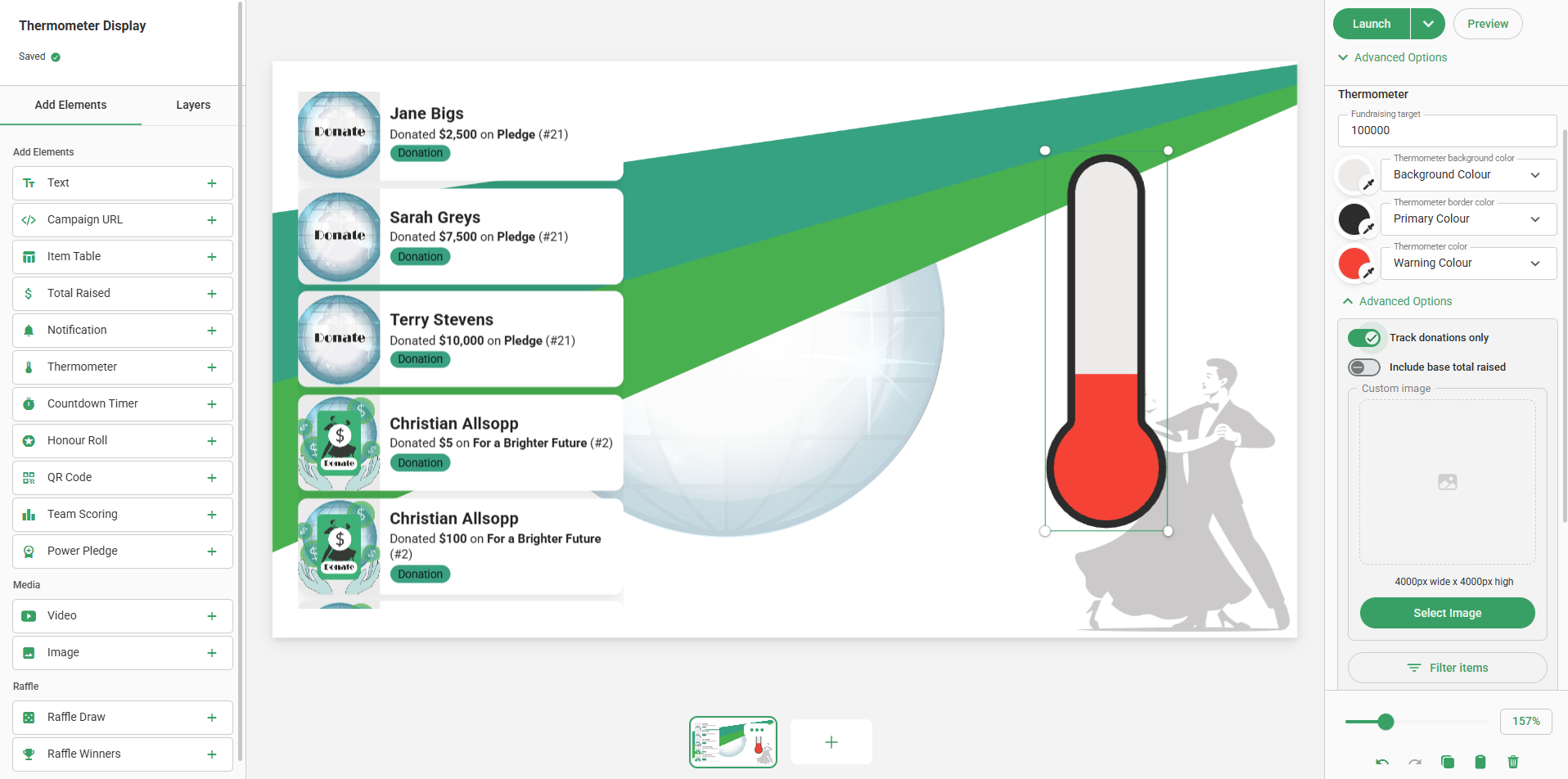
Step 5) Select the Thermometer element from the list on the left and adjust its placement as needed.
The tool bar will then display the settings for your thermometer on the right. You can set the fundraising target, adjust the branding or replace the image with a custom JPEG or PNG image.
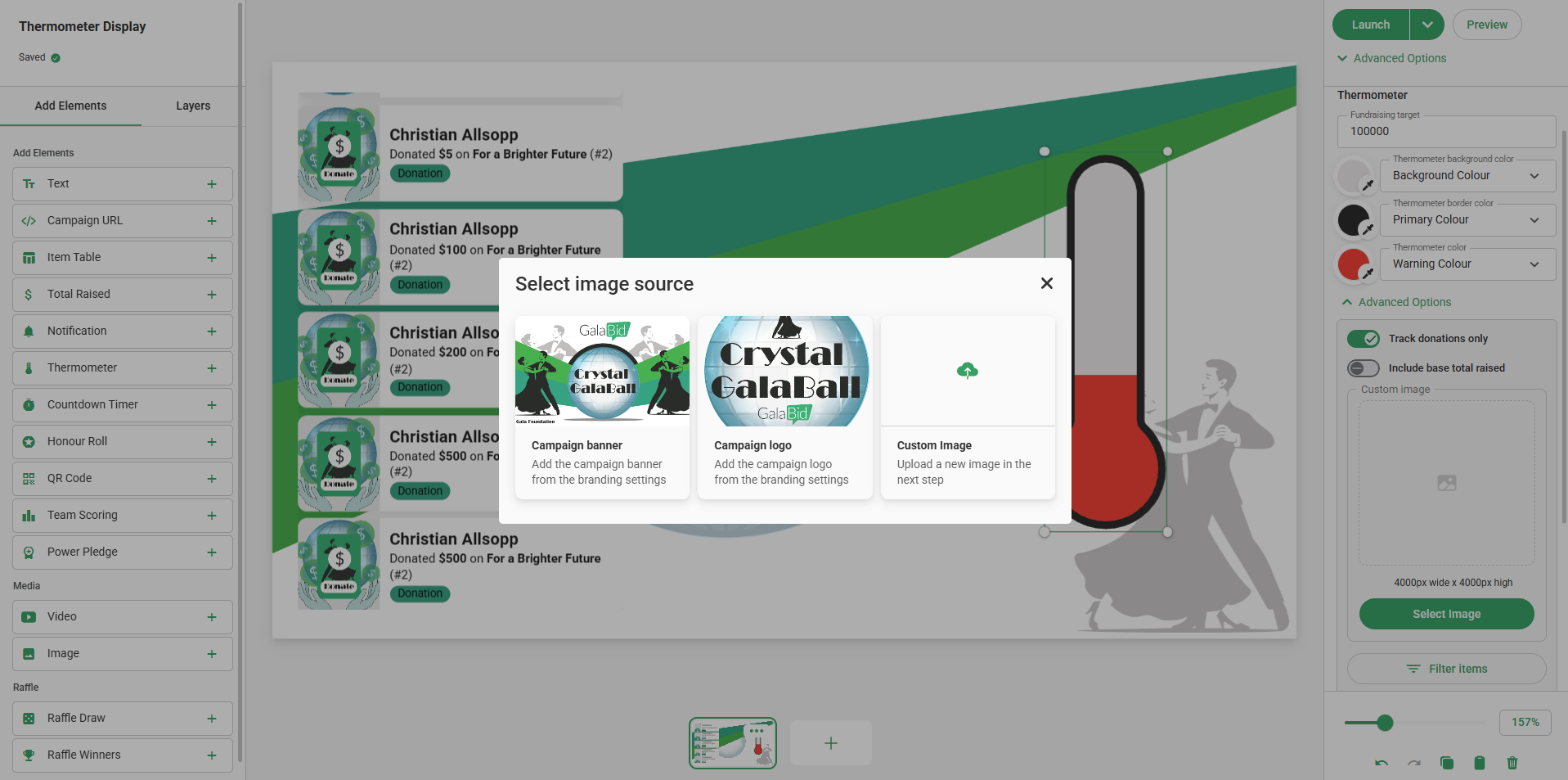
Step 6) Adding a logo or custom image. To do this click the 'Image' element from the Media section. The platform will then give you the option to choose from your campaign branding or to upload a new image from the files on your device.
Step 7) Add the QR Code element.
By default, the QR Code is linked to your campaign URL and directs your participants to your campaign homepage. However, you can alter the destination of the QR code by replacing the URL on the righthand toolbar.
Here I have taken the URL that leads directly to the campaign donation page to ensure quick and easy access for my supporters.
You can copy this URL either directly from your browser, or by navigating to the Items tab in your dashboard, editing your 'Donation' item and then temporarily unticking 'Item Visible' to display the direct link.

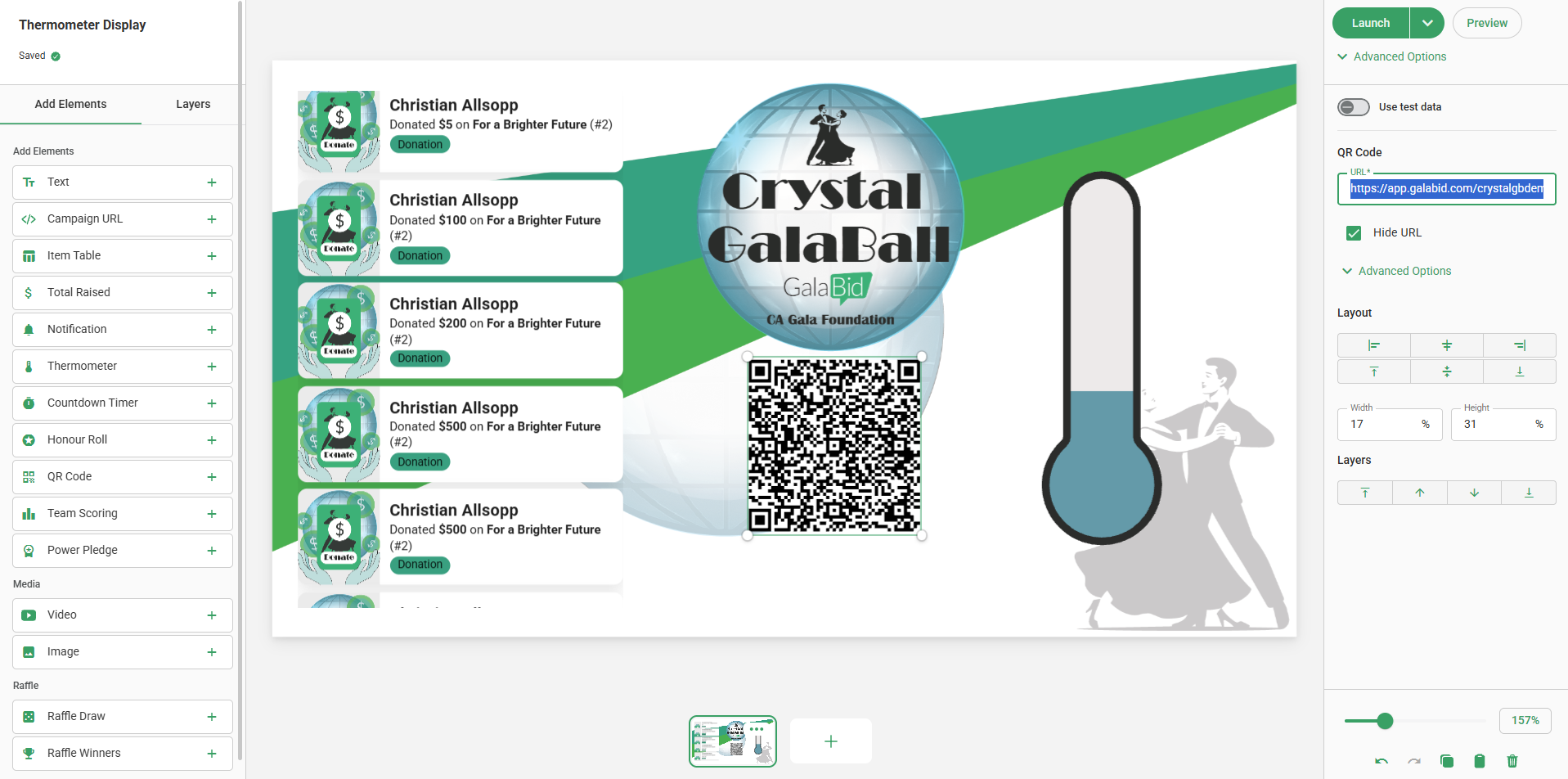
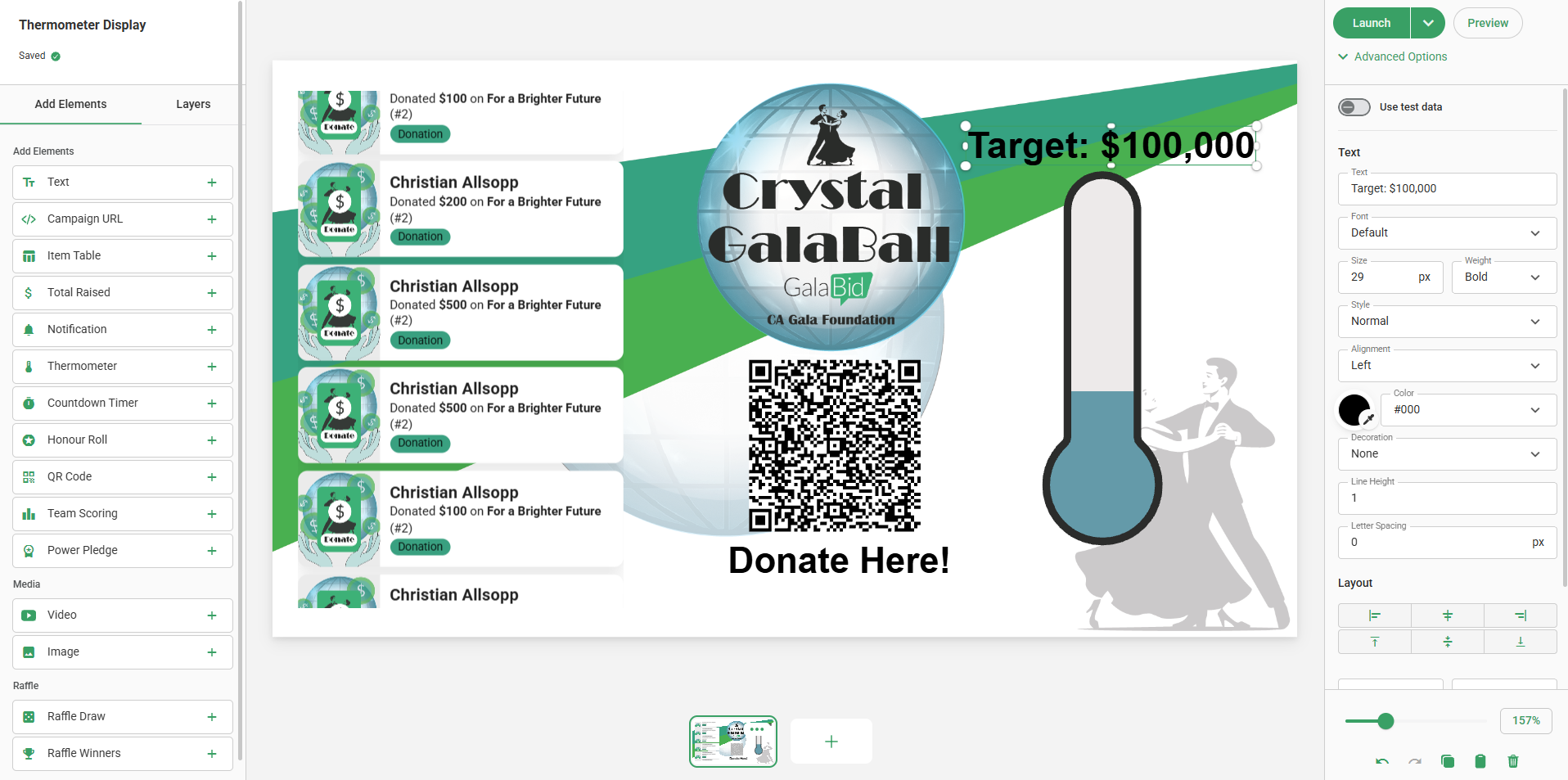
Step 8) Add Text. You will want to add two text elements, one for 'Donate Here!' and one for 'Target'. Once added, you can edit the displayed text via the righthand toolbar.
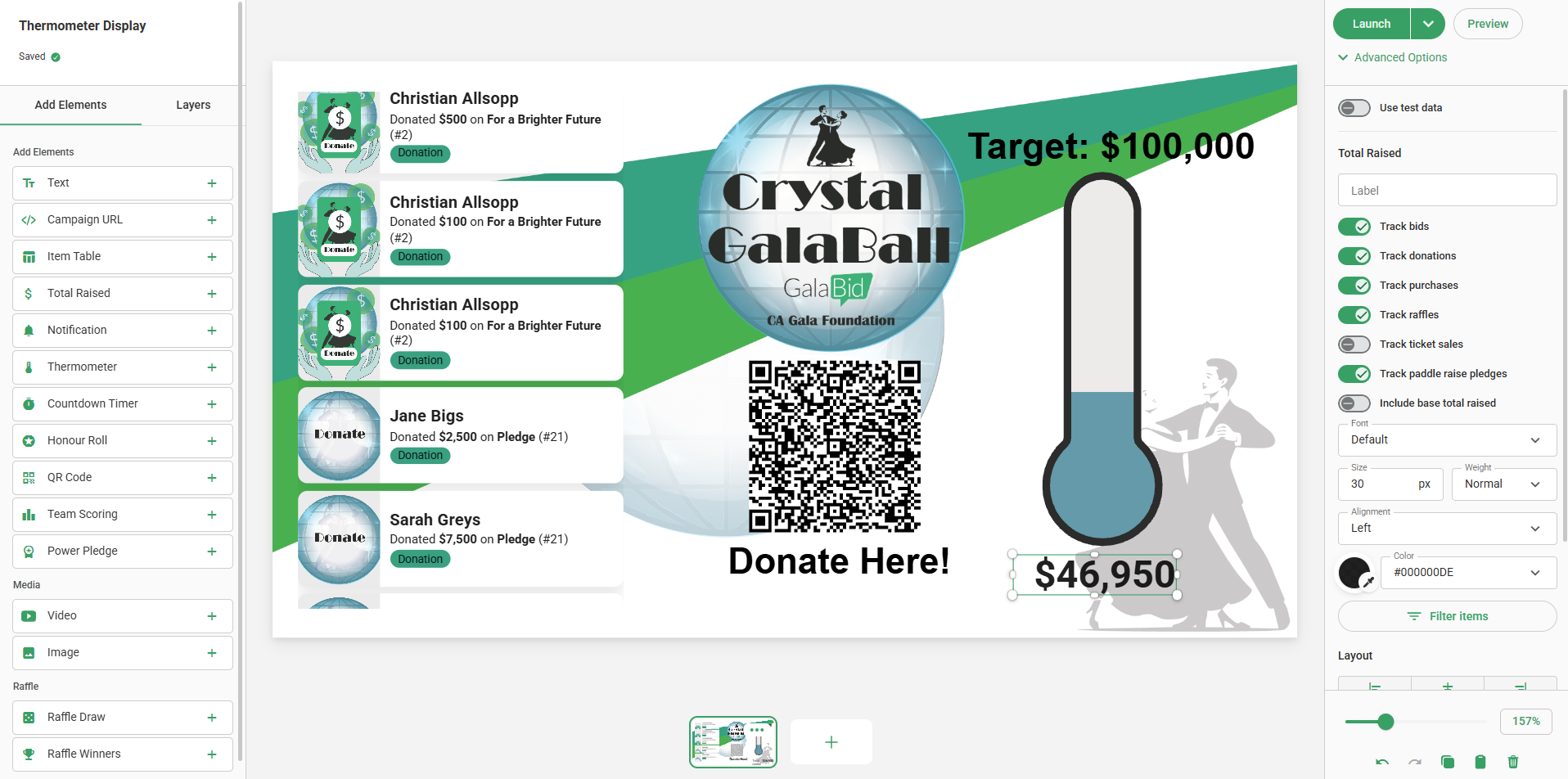
Step 9) Finally, you will want to add the 'Total Raised' counter for your supporters to track.
By default, the Total Raised element will come with the text 'Total Raised' alongside the figure. To remove this, simply delete the text from the label section on the righthand toolbar.
To preview the finished result, click 'Preview' in the top right corner of the page. This will then show you how the projector will be displayed. You can also achieve this by clicking 'Launch' and then going 'Full Screen'.
To see how you can set up a Raffle Draw display or an Auction Leaderboard, check out the articles below:
Raffle Draw
Auction Leaderboard
If you have any questions feel free to reach-out to us here.
