

How do I Test my Campaign?
Testing Your GalaBid Campaign
There is no better way to understand the function of your campaign than by running a test.
This article will walk you through the best way to test out your campaign, this works for all features on the GalaBid platform.
Please Note: All tests on your campaign need to be carried out prior to inviting participants and going live.
First you will need to setup your campaign, check out our help sections for guidance on setting up your fundraiser if you haven't already done so:
Auction
Raffle
Event Tickets
Donation
Now you have setup your campaign you are ready to run your test, the way to do this is to walk through the process as if you are one of your participants.
Please Note: If you are testing a purchase on an item the minimum amount that can be set is '1' and Stripe fees are not refundable.
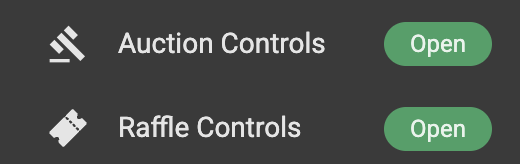
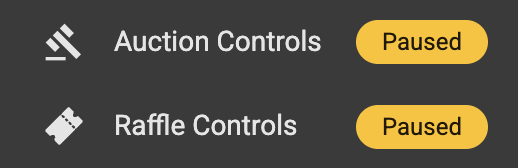
First open any features you have in use under their controls tab found on the dashboard.
Event tickets, Donation and Buy it Now don't require any controls as these features are live as soon as they are created, Raffles are also live as soon as they are created but are switched to paused if you schedule an opening time under their controls tab.
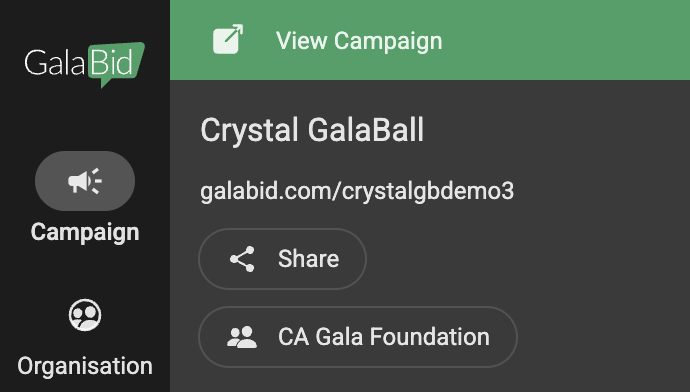
Once opened navigate to the front end of your campaign via the invitation link, QR code found under 'Share' or by clicking 'View Campaign' in the top left corner of your dashboard.
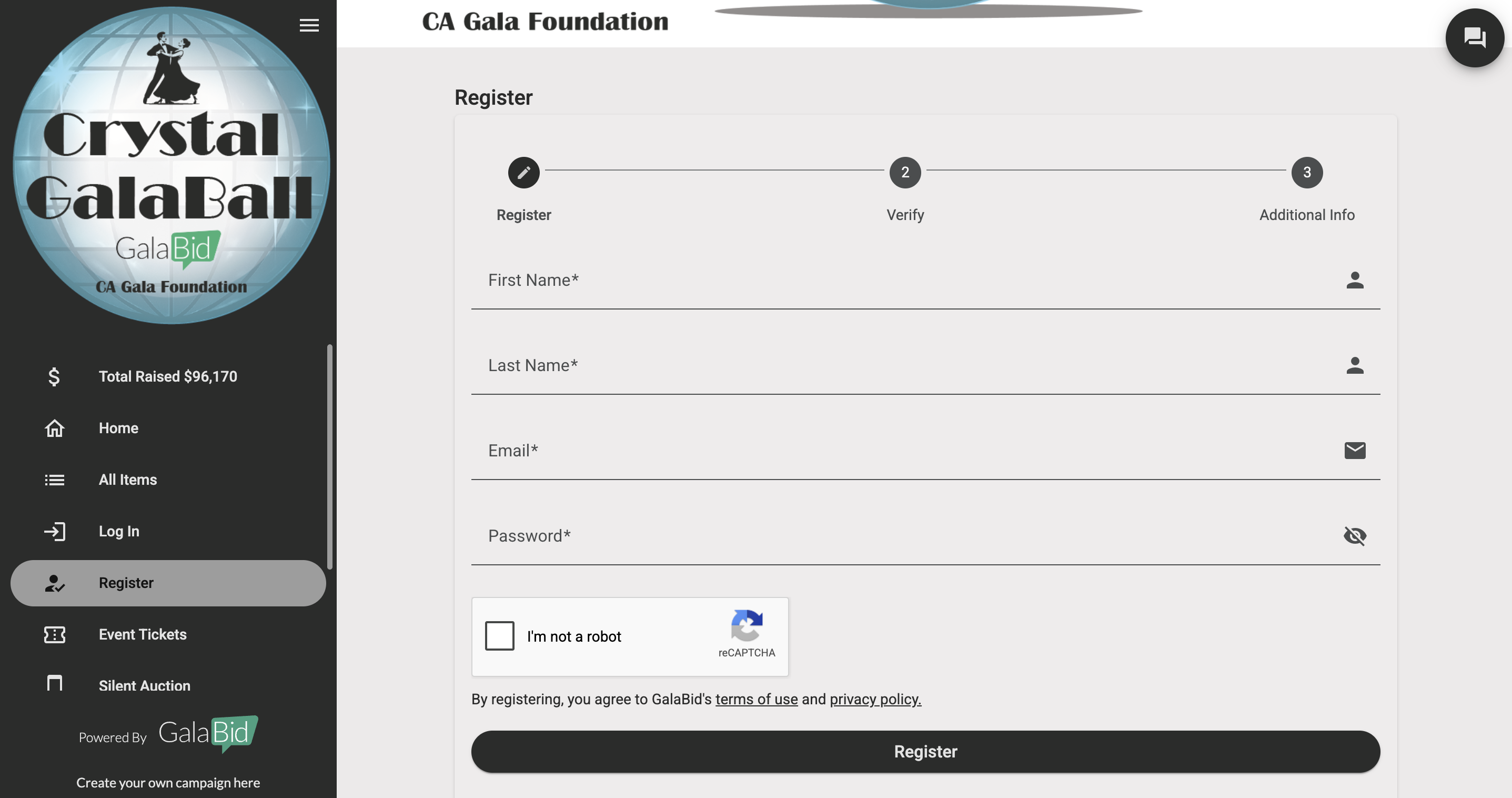
Register as a participant to your campaign.
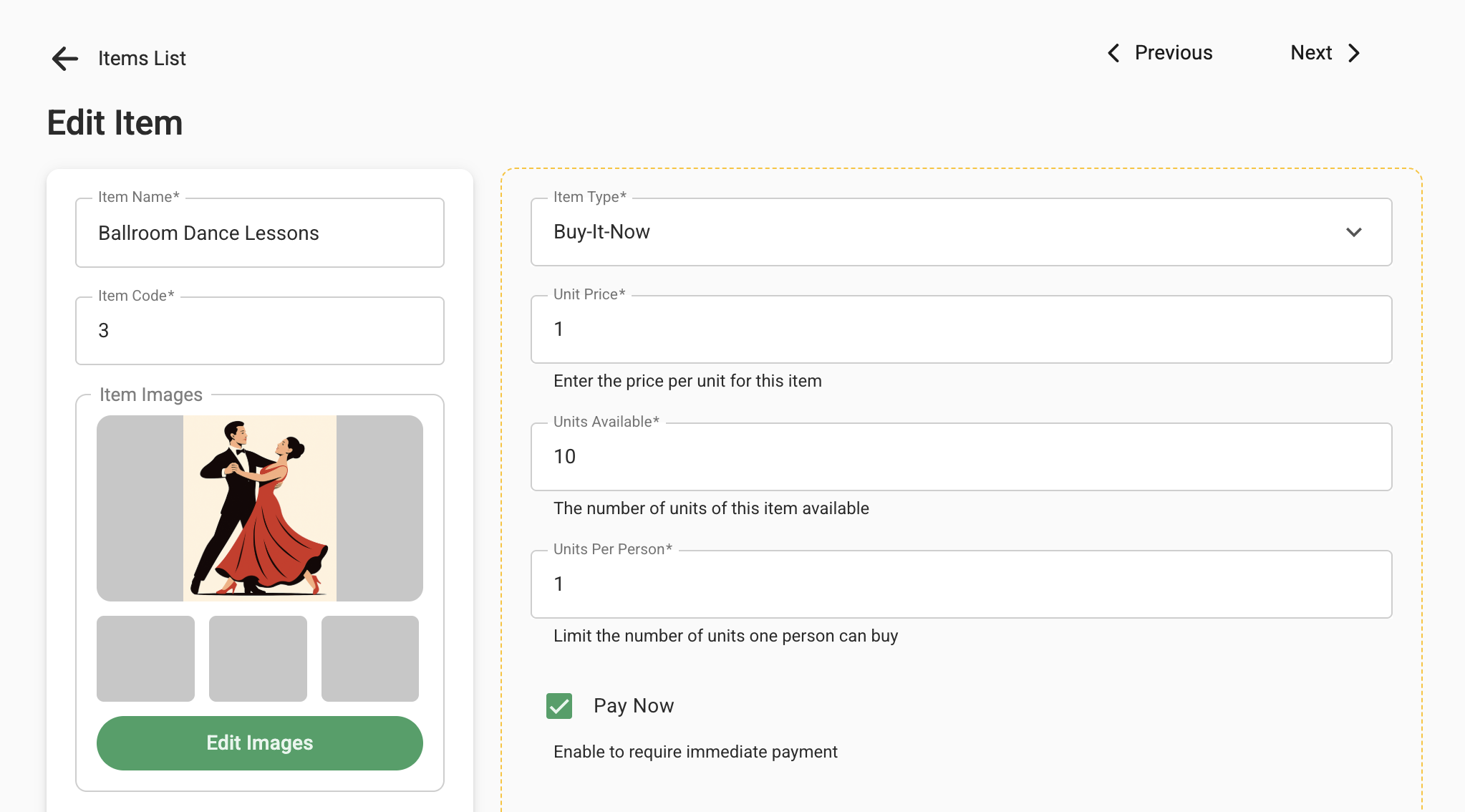
Next locate an item to bid on, donation or ticket to purchase.
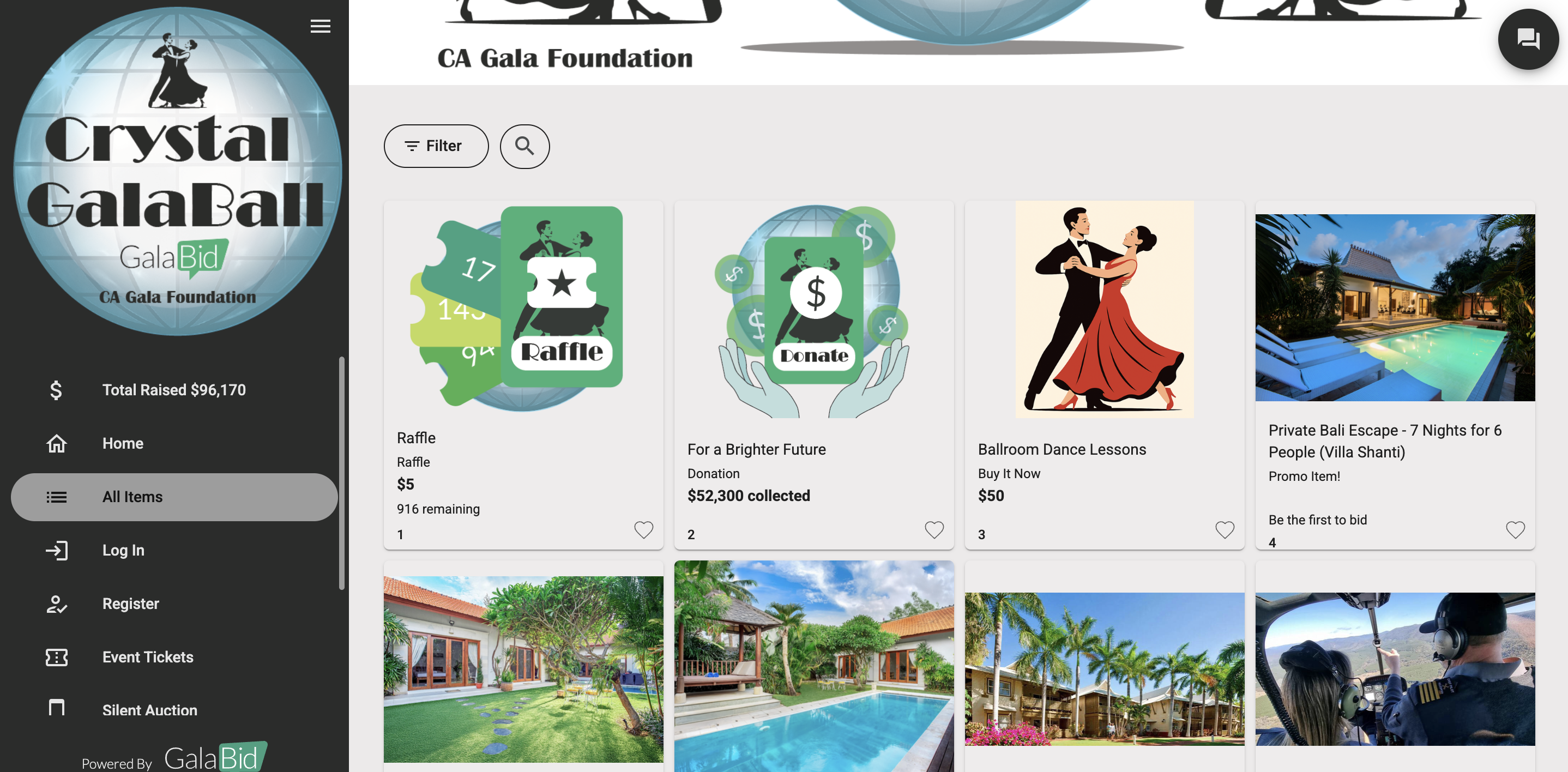
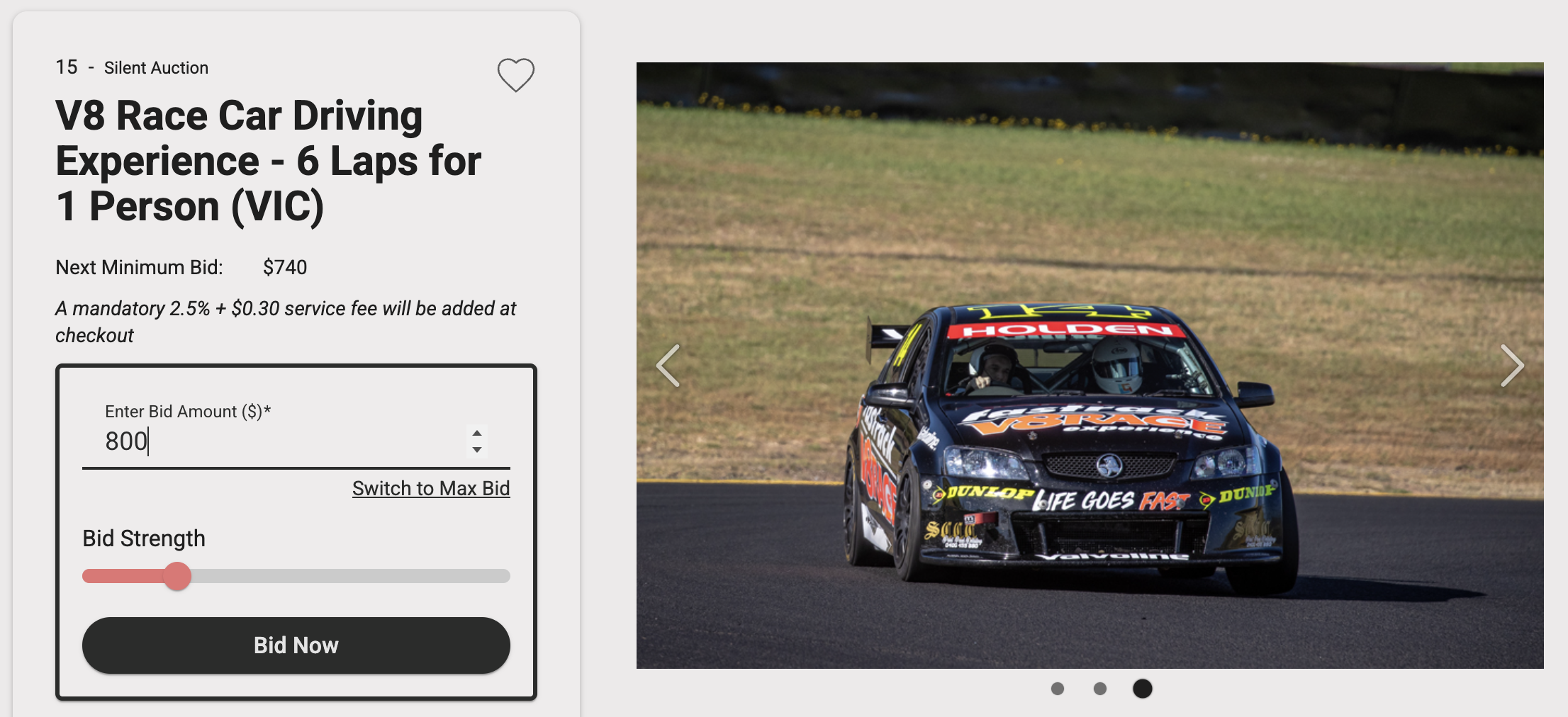
Enter the quantity or amount and proceed.
To finalise your test return to the dashboard and close any Auction or Raffle controls, this will trigger any end messages for you to review.
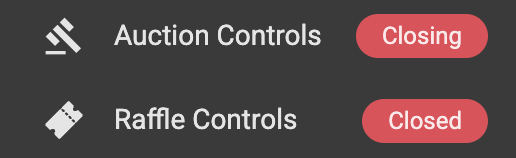
Important: For test purposes your Auction Controls can be opened and closed. Once your Auction is open to your participants, it should only be closed once, and should not be reopened, Please consult a member of GalaBid Staff if you require an Auction reopen after it has already closed to your participants.
With Raffles be sure to check test tickets have been refunded from your 'Bids and buys' tab to ensure that your test doesn't affect your draw further down the line and infringe any laws associated with your Raffle in your area.
Please Note: That when refunding a raffle ticket it will remove that ticket number completely from the draw and cannot be re-added.
Now the tests are complete you can remove them, to refund any payments navigate to 'Checkout' > 'Payments' and click 'Refund' to the right of the row.

To then delete any activity done such as bid navigate to the 'Bids and Buys' tab and delete any activity here by clicking ''Delete' to the right of the row.

If you were testing Event Tickets this will be found under 'Ticketing & Check-in' > 'Ticket Purchases' and then selecting 'Delete' to the right, any Event Ticket purchases that have been refunded will display as 'Cancelled' in the Payment Status column.

Once all the test activity is removed you can reset any controls if required under the Auction and Raffle tabs.
If you need guidance through out your tests our LiveChat team are available to assist with any questions, so feel free to reach out to them.
