How does the Communications Module work?
To send a message to an individual participant, go to the Participants Section.
The Communications section allows you to send or schedule bulk notifications to participants in your campaign. You can choose from popular notification templates or customize your own. You can also include links to your campaign or promoted items.
This module also allows you to preview all default notifications. You can edit specific default notifications, such as winning bidder and unsuccessful bidder notifications on auction campaigns.
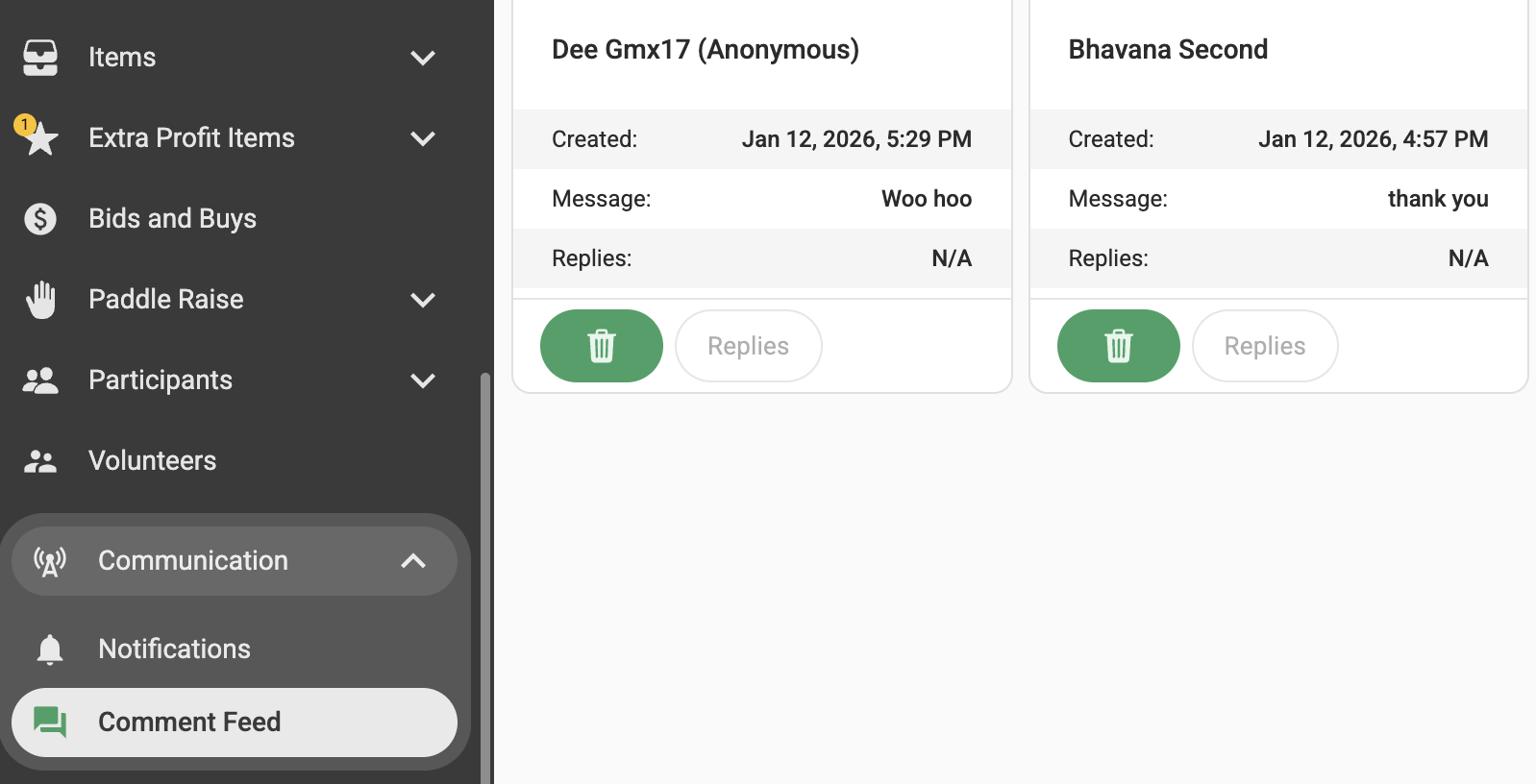
You can also manage the Comment feed on your campaign via the Communications Section.
Here is a tutorial video on how the Communications module works on the GalaBid platform.
Notifications Tab
On the Notifications tab, you can send or schedule notifications. You can also edit selected default notifications and preview all default notifications.

You can customize the automatic messages sent to participants at the end of your auction. For example, if you want to edit the message sent to unsuccessful bidders, click the pencil icon next to Unsuccessful Bidders.
Make any changes you'd like to the message. This is the notification participants will automatically receive once the auction has closed.

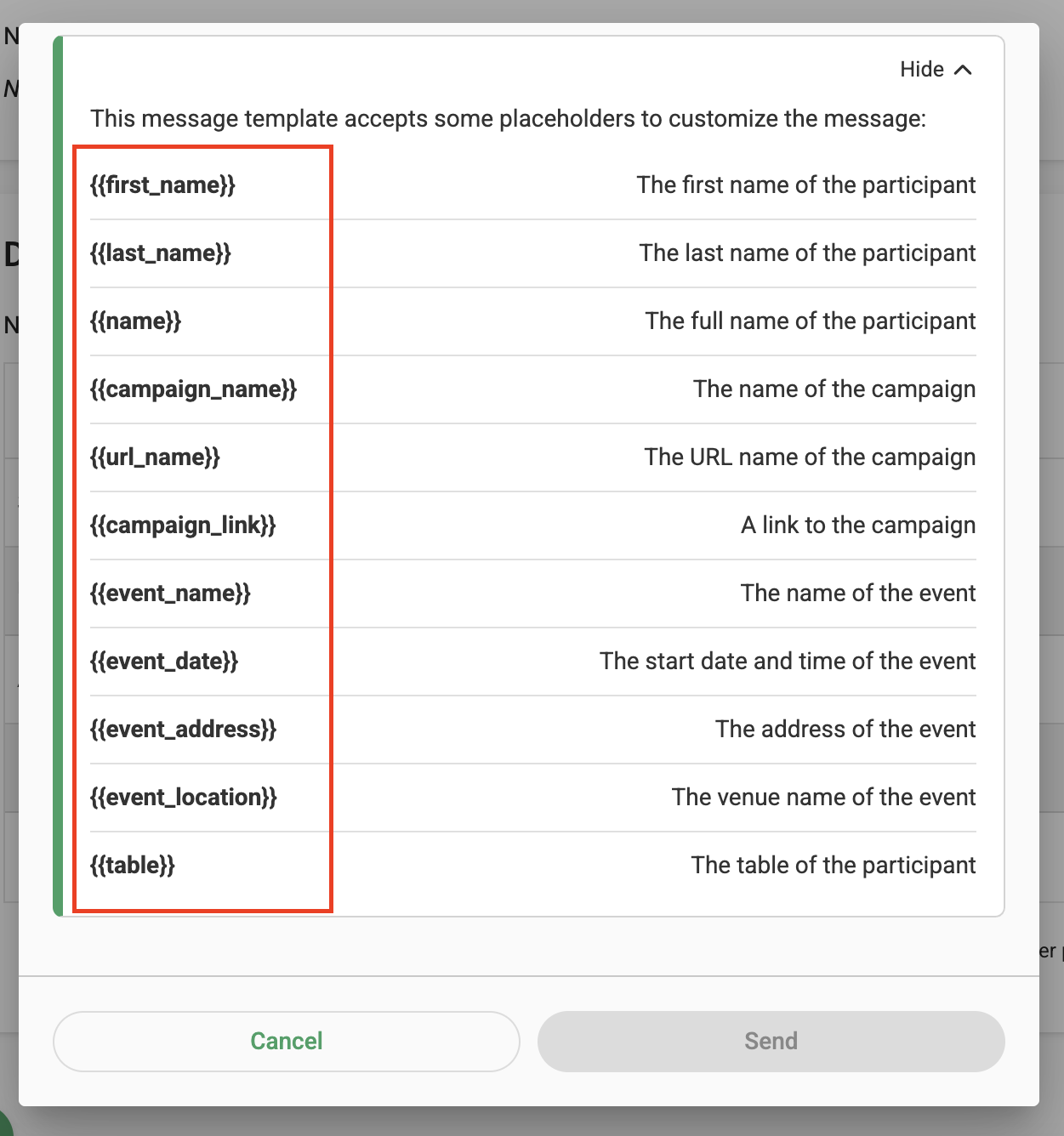
Placeholders can be used to customise your message. By entering a placeholder, as highlighted in the image below, the corresponding information will automatically be included in the message. For example, if you enter Hi! {{first_name}} Welcome., the participant's first name will be displayed in the message.
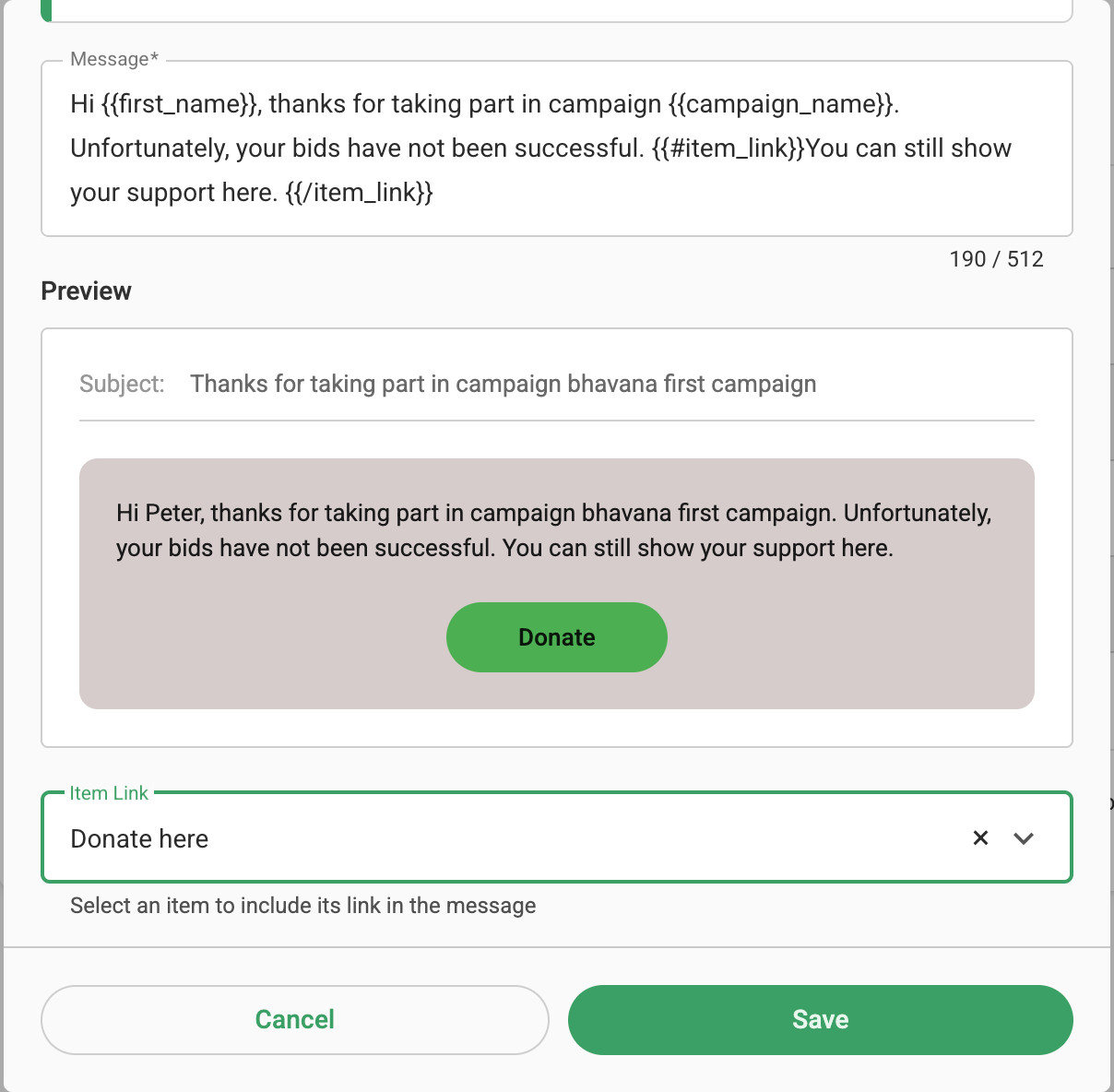
Click on the Item Link field to choose a specific item to be included as the item link placeholder. For example, in the Unsuccessful Bidder notification, if you select your donation item, that item will be included in the notification. This makes it easy for participants who receive the notification to make a donation after the auction closes. When you're happy with your changes, click Save to apply the updated version to your campaign.
Creating and Sending a New Notification to All Participants
To create and send a notification to all participants, click the "New Notification" button located in the bottom-right corner of the page, a pop up will then appear for you to compose your message.You can choose from a variety of pre-defined templates or select 'No Template' to create your own notification.
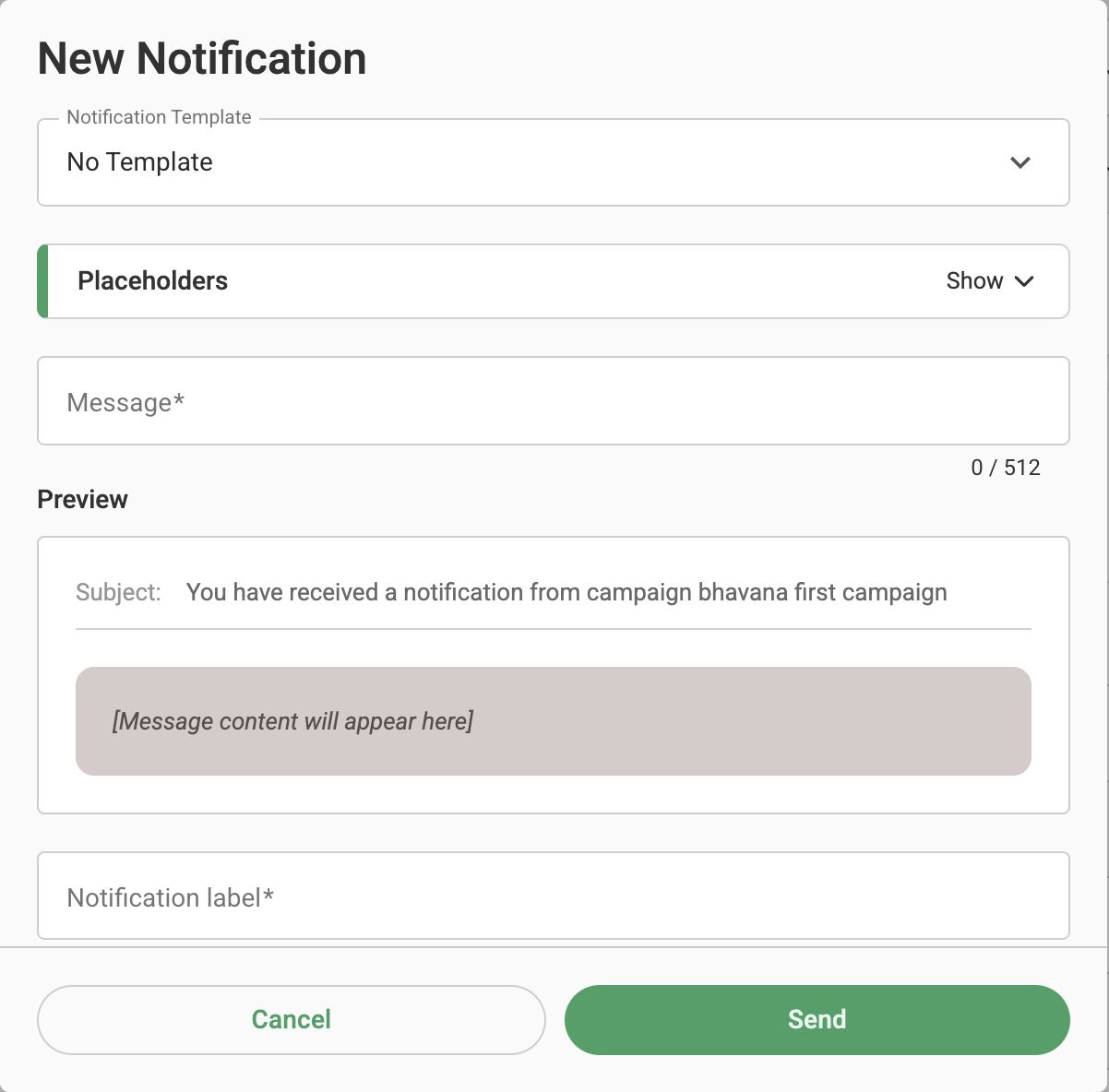
Enter your message in the message field, and select "Everyone" under the Recipients section. Once you have reviewed the notification, click Send to deliver it to all participants.

The Comment Feed page allows you to view and manage all comments posted by participants across your campaign. You can delete any comments that are no longer relevant or appropriate.
For more information on the Activity feed check out this article.