

How do I add paddle numbers for a Paddle Raise?
Check out this tutorial video or follow the steps below to incorporate this feature into your campaign.
1) Settings
Enable and configure Paddle Raise in Setup > General.
By default, participants can be allocated a paddle number regardless of whether they have a payment method connected. To require a payment method before assigning a paddle number, go to Setup > General and enable Require linked payment method.

2) Allocating Paddle Numbers Using GalaBid Event Check In
Go to Ticketing > Check In > Guests, or open Event Check In from a Volunteer account.
Click Check In for a participant and enter a paddle number.
Or, select Auto Select Paddle Number to have GalaBid generate one automatically.

Useful Information Displayed at Check In
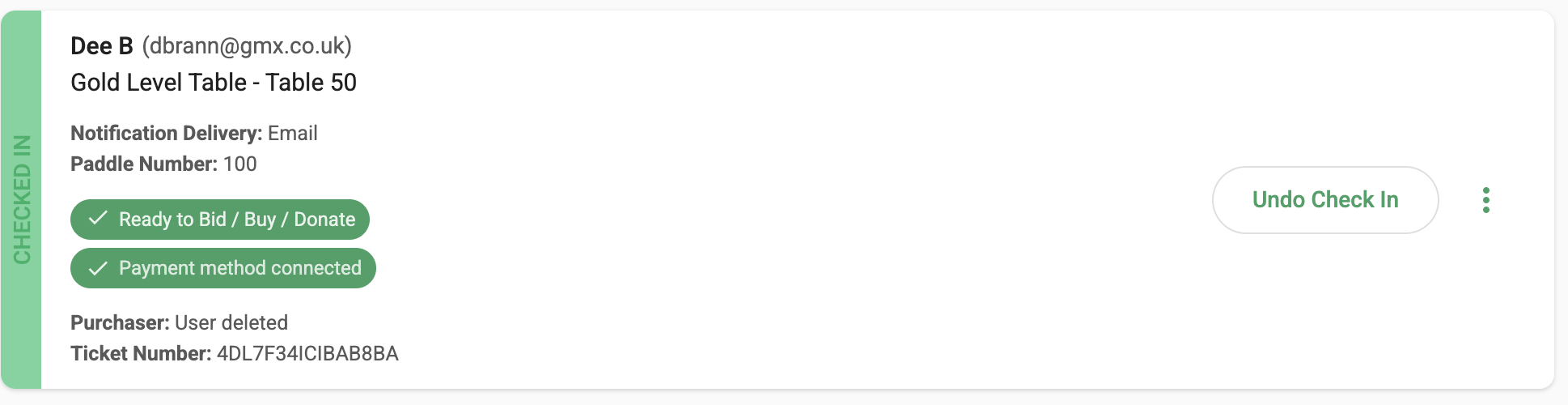
Payment Method Connected
Shows whether the participant has a payment method on file.
Use the More Options menu (three dots) to add a payment method.
To require a payment method before assigning paddles, ensure this is enabled in Setup > General.
Ready to Bid, Buy, Donate
Indicates whether the participant has completed their GalaBid profile (including accepting the campaign terms and conditions).
If not, use More Options to re-send the invitation, or direct them to scan the campaign QR code or visit the campaign URL to complete setup.
Communication Preferences
Shows whether the participant has opted into text notifications or if email remains their preferred communication channel.
Preferences can be updated in My Account when logged into the campaign, or by a volunteer via Guests in a Volunteer account.
(Text notifications require Phone Number to be enabled in Registration Settings.)
2a) Allocating Paddle Numbers Without Using GalaBid Ticketing / Check-In
Go to Participants in the campaign dashboard side menu. Search and edit a participant to add or auto-assign a paddle number.
From a Volunteer account, search the participant and edit their profile to assign a paddle number.
Note: A paddle number cannot be assigned if the participant has been invited, but has not yet accepted.
Troubleshooting Unverified / Incomplete Profiles
If a participant has not verified their profile:
Option 1: They open their email and accept the invitation.
Option 2: They visit the campaign URL / QR code and register (using the same or a different email).
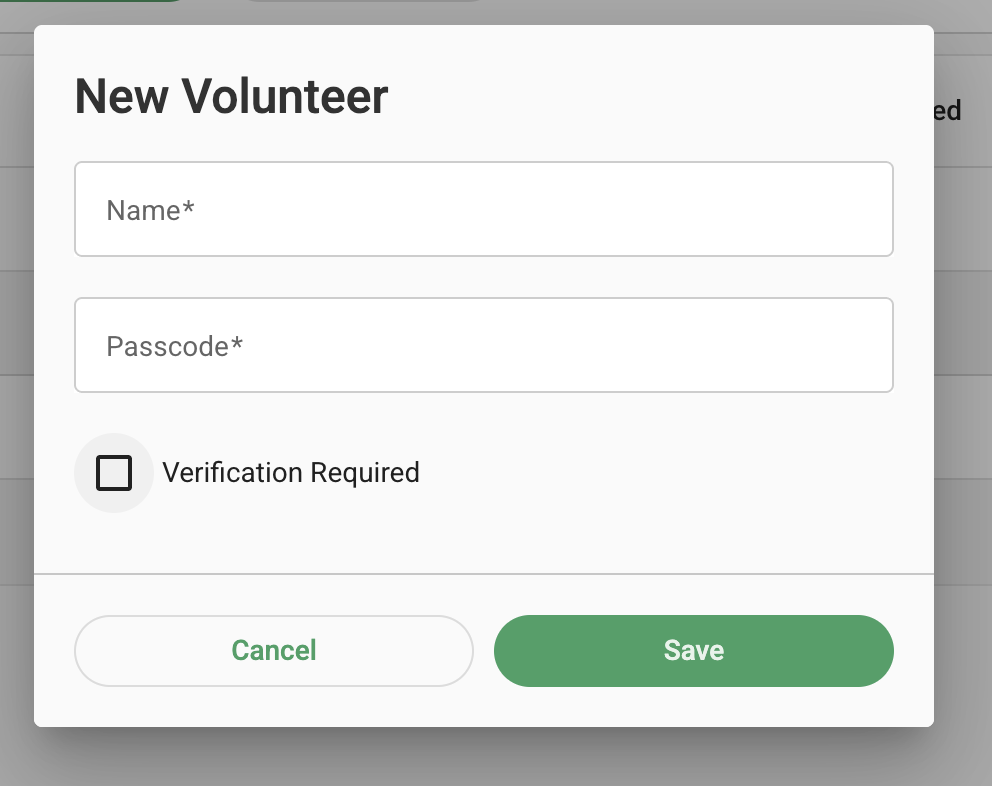
Option 3: If their email system blocks verification emails, use a Volunteer account with Verification Disabled to re-register them.
Contact our support team if the Verification Required checkbox is unavailable on Volunteer Accounts on your campaign.
3) Giving Levels Settings
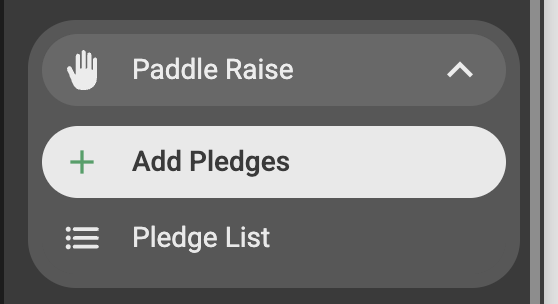
Go to Paddle Raise in the Side Nav and select Add Pledges. Add, edit, or delete giving levels as required.
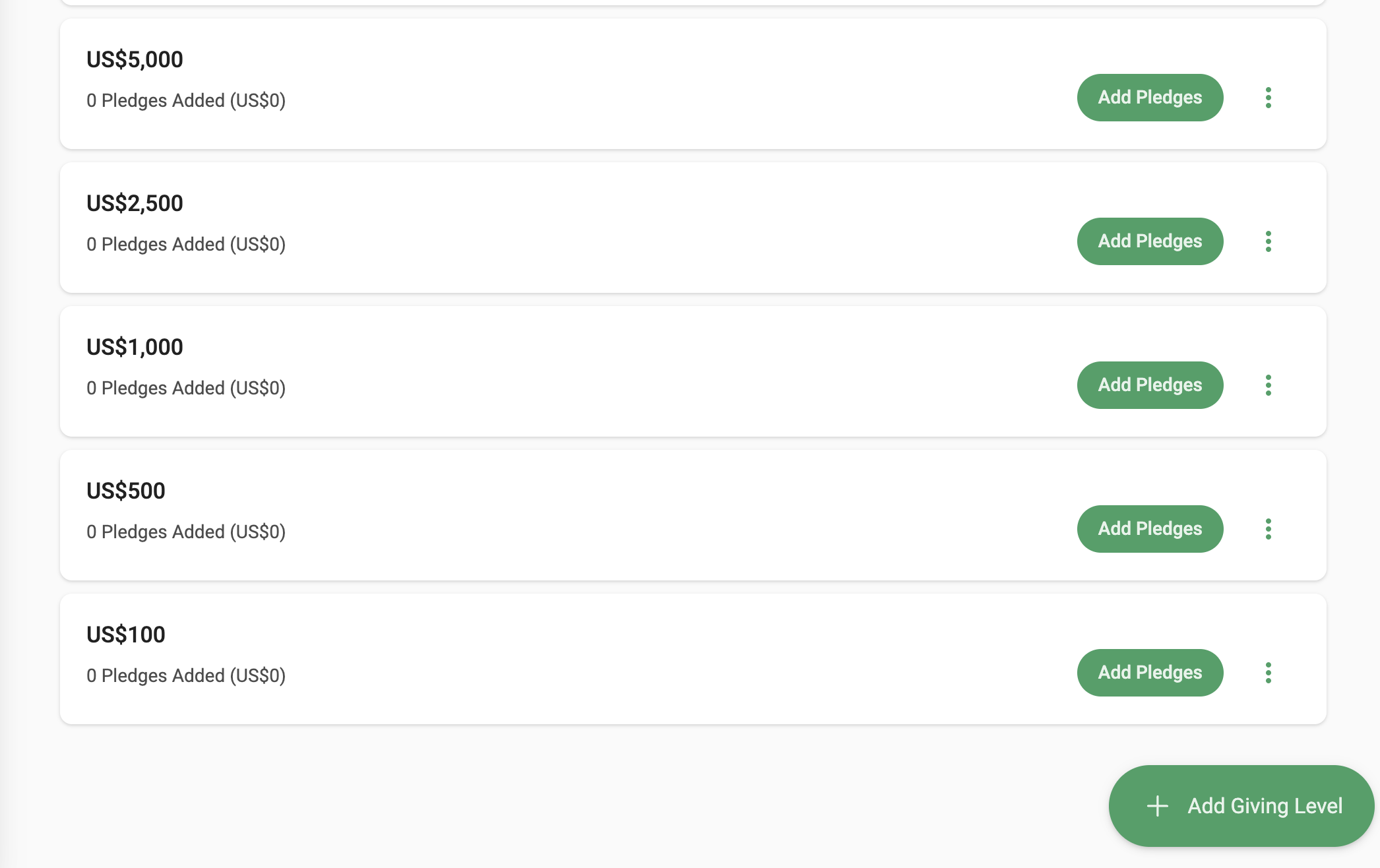
4) Entering Pledge Amounts
During the live Paddle Raise:
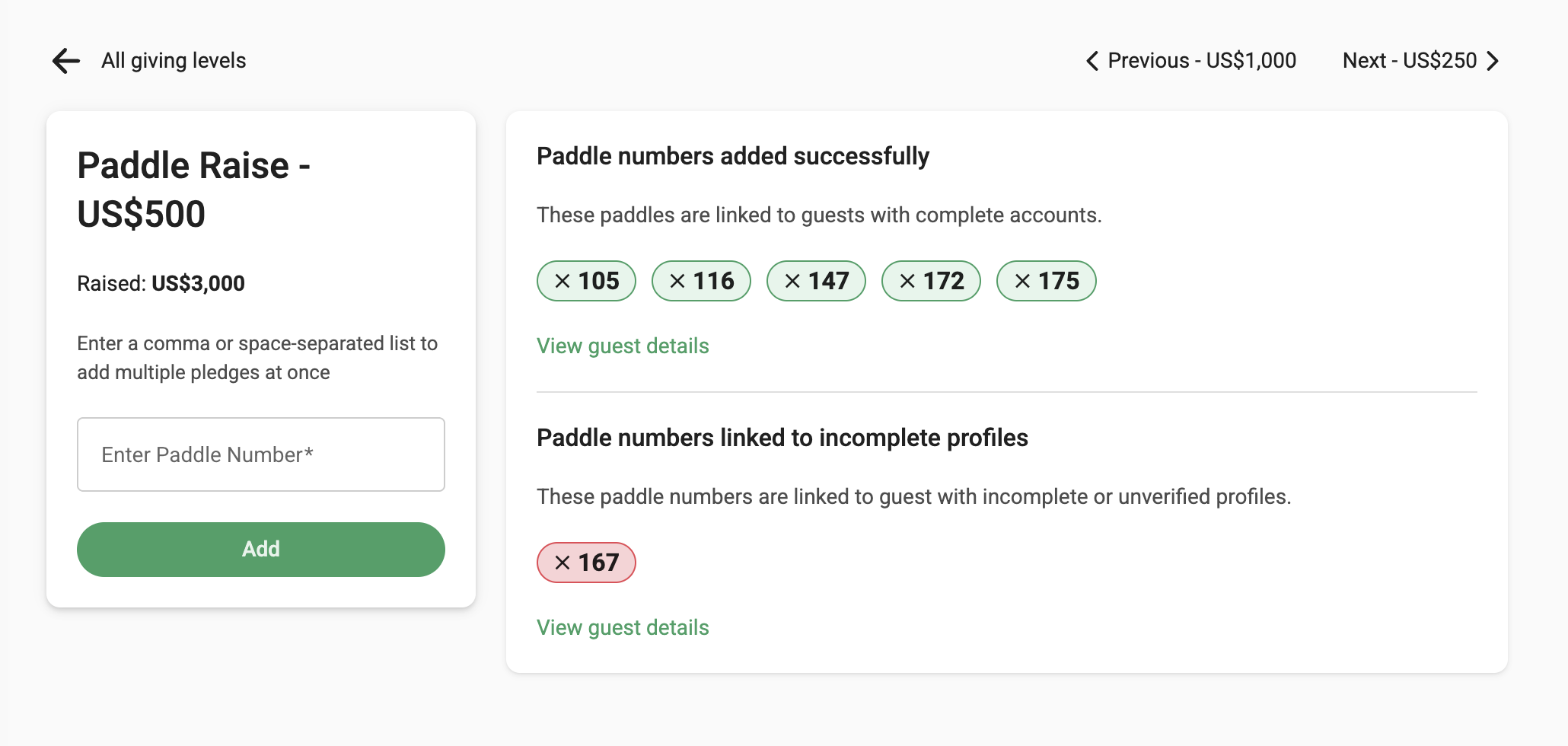
- Select the giving level
- Enter the participant's paddle number
- Click Add
The system is optimized for fast entry during live events.
Paddles numbers linked to verified participants appear in green.
Unassigned paddle entries appear in red for easy review and correction.
Alternatively, paddle numbers can be recorded manually and later entered into GalaBid.
5) Collecting Payments
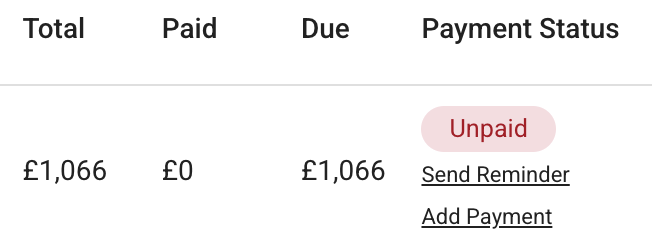
Pledges are automatically added to the participant’s invoice.
- If a silent auction is still open, participants will be prompted to pay when it closes.
- If the silent has closed, send payment prompts using Payment Reminders in the Checkout Console
- If pre-authorization is enabled, cards can be charged individually via the Checkout Console.
6) Live Auctions & Paddle Numbers
If running a Live Auction with an auctioneer use the Live Auction Item type.
You may:
- Create them as display-only items, with or without warm up "pre-bids" for the auctioneer.
- Record the winning bid in the room for payment processing.
How to Record a Live Auction Winning Bid
- Log into a Volunteer account
- Open the Live Auction item
- Enter the winning bid
- Search for the participant by paddle number to assign the purchase
7) Assistance
We are here to help. Reach out to our team to make the most of the Paddle Raise feature.
