

Registration Settings Overview including SMS (text) notifications
How to set up Campaign Registration?
Access Registration Settings via Setup > Registration.
For an overview of Registration Settings watch the video or read the notes below.
The video overview includes:
Enabling phone number, so participants can opt into notifications via text message
Address Field
- Related article: Addresses for Shipping
Team Scoring (Previously Table Scoring)
- Related article: Team Scoring Overview
Custom Fields
Editing Campaign Terms & Conditions
Settings to allow opt in to text notifications
Enable phone number if not already enabled. Choose Optional or Mandatory.
Selecting Optional gives participants the choice to switch their notifications from email to text message (SMS). If they choose to enable text messages, they’ll be prompted to verify their phone number. This is the most commonly used setting.
Only select Mandatory if all participants' phone numbers are required. When selected all participants will be required to enter and verify their phone number. This applies in all cases, including when users choose not to opt in to receive text message notifications.
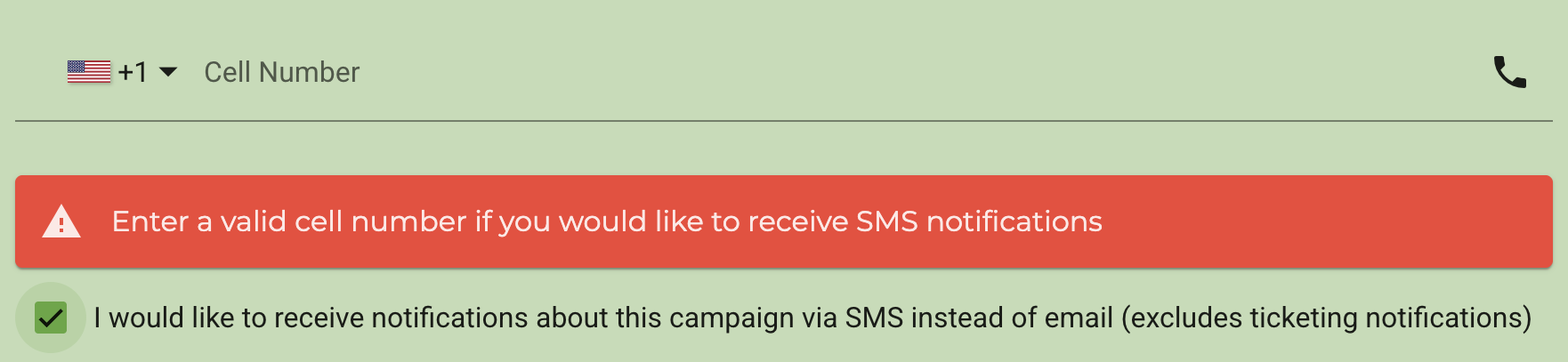
To check the participant experience register as a participant on your campaign. Re-register on the same campaign to test different registration settings.
Customising Registration
You can adjust the registration process for your participants under 'Setup' > 'Registration Questions'. Here, you can setup and adjust the fields your participants fill in upon registering to your campaign.
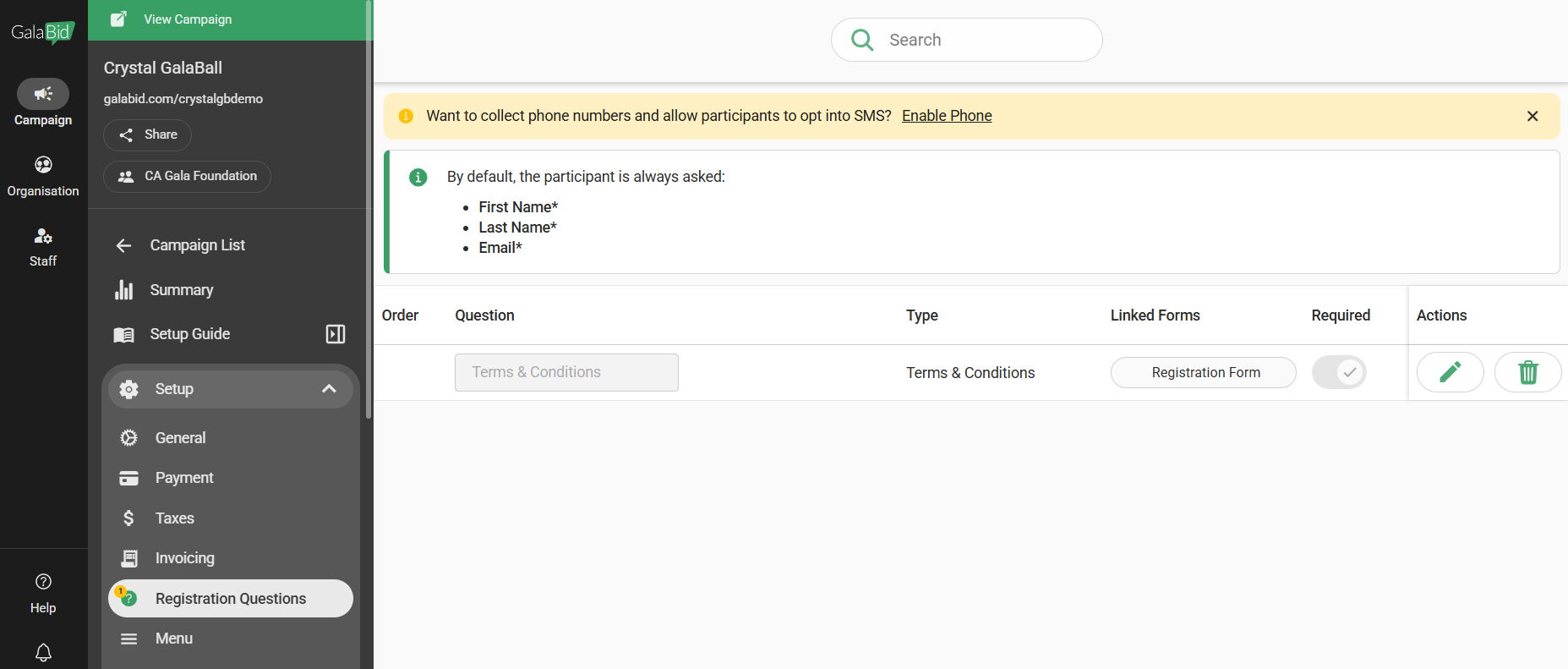
By default, First name, Last name and Email will be required by participants.
To add a new question click 'Add Question' in the bottom right corner, it will then display common questions that admins add and clicking the search bar will the give you a drop down of created questions you can add.

Creating Custom Questions
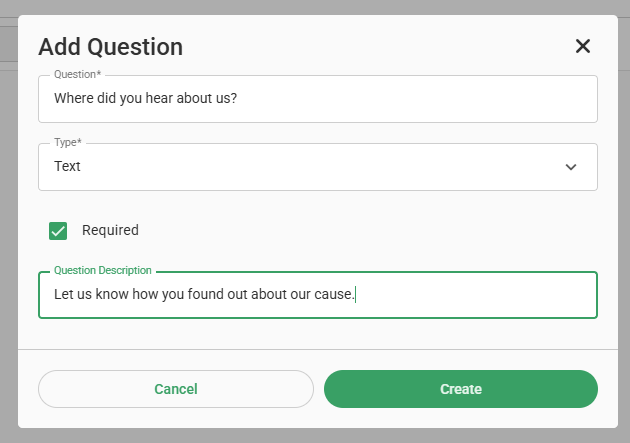
'Custom Questions' can be added for participants to complete when registering to your campaign.
To create a custom question write out your question in the search bar.

Select 'Create a new question', it will then take you to adjust the layout of the question and how it will be answered. You have the option of setting the question as Open Text or Multiple Choice.
To create a custom field write out your question in the search bar.
Editing Terms & Conditions
Editing the Terms & Conditions to suit the specifics of your campaign is recommended. To do this click the pencil icon to the right of the Terms & Conditions row.

If you have any questions be sure to reach out us on the LiveChat or email us at helpdesk@galabid.com
